VS Code extension
The extension puts the topology editor and the lab explorer inside VS Code. It runs containerlab on the machine it runs on, and shows the labs of lab hosts running clab-api-server next to them.
# Diagram only: where the VS Code extension runs. Not a deployable lab.
name: vscode-host

topology:
  nodes:
    vs-code: {kind: linux}
    extension: {kind: linux}
    containerlab: {kind: linux}
    docker: {kind: linux}
    r1: {kind: linux}
    r2: {kind: linux}

  links:
    - endpoints: [r1:eth1, r2:eth1]
# Diagram only: where the VS Code extension runs. Not a deployable lab.
name: vscode-host

topology:
  nodes:
    vs-code: {kind: linux}
    extension: {kind: linux}
    containerlab: {kind: linux}
    docker: {kind: linux}
    r1: {kind: linux}
    r2: {kind: linux}

  links:
- endpoints: [r1:eth1, r2:eth1]Prepare the lab machine
To run labs where VS Code runs, on the Linux machine (or WSL distribution):
- Install containerlab. The extension offers to install it when it cannot find the binary.
- Make sure Docker works for your user.
- Run VS Code as root, or add your user to the
clab_adminsanddockergroups.
For labs on a lab host with clab-api-server, skip this and work with labs on a lab host. For a remote server without it, install the Remote SSH extension on your laptop and connect to the server first. Everything below then happens on the server.
Install
-
Install the extension. Get it from the VS Code Marketplace, or search for
Containerlabin the Extensions view. -
Open a folder that contains
*.clab.ymlfiles, or an empty folder for a new lab. -
Select the containerlab icon in the Activity Bar. The explorer lists your topology files and every lab already running on the machine.
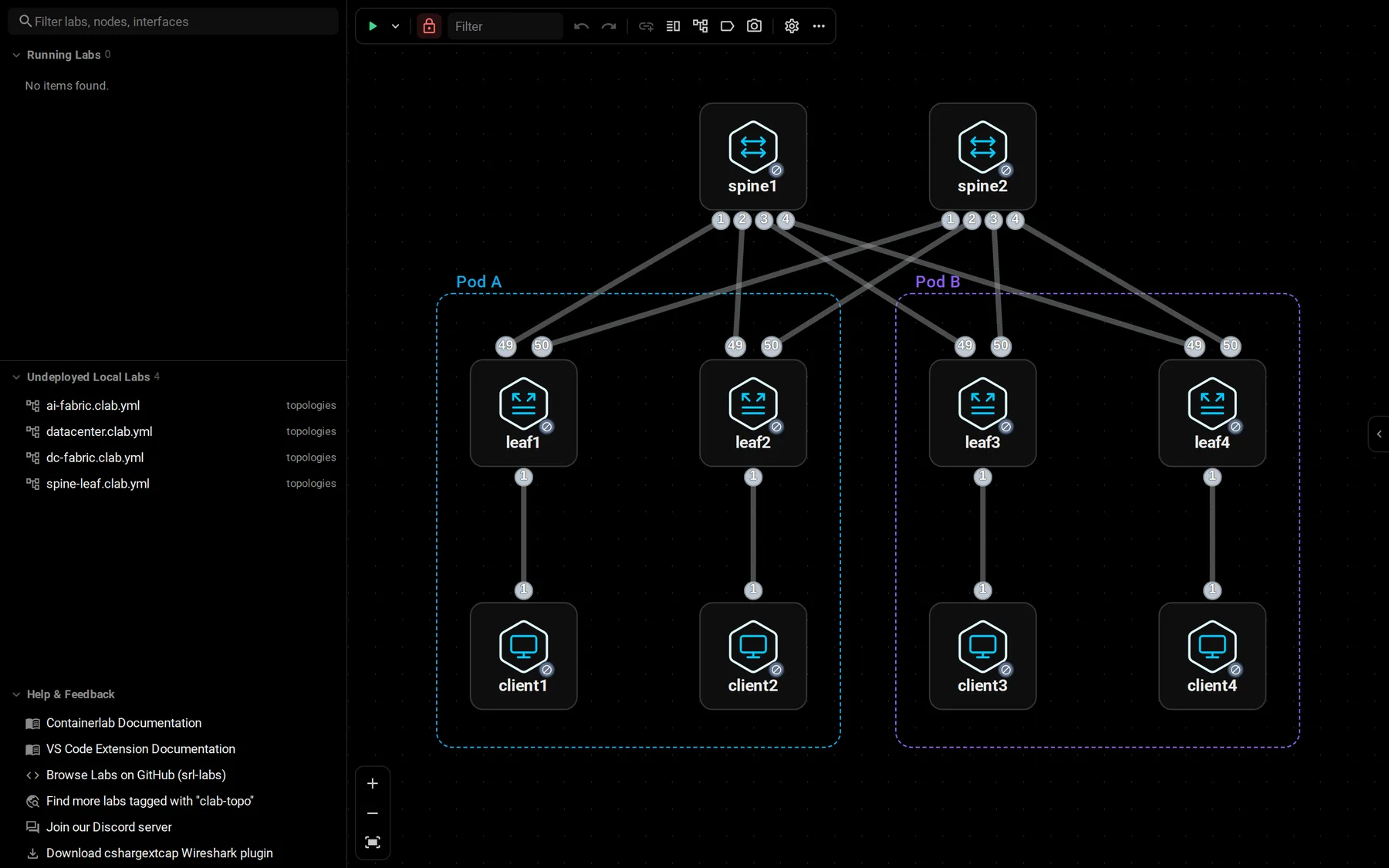
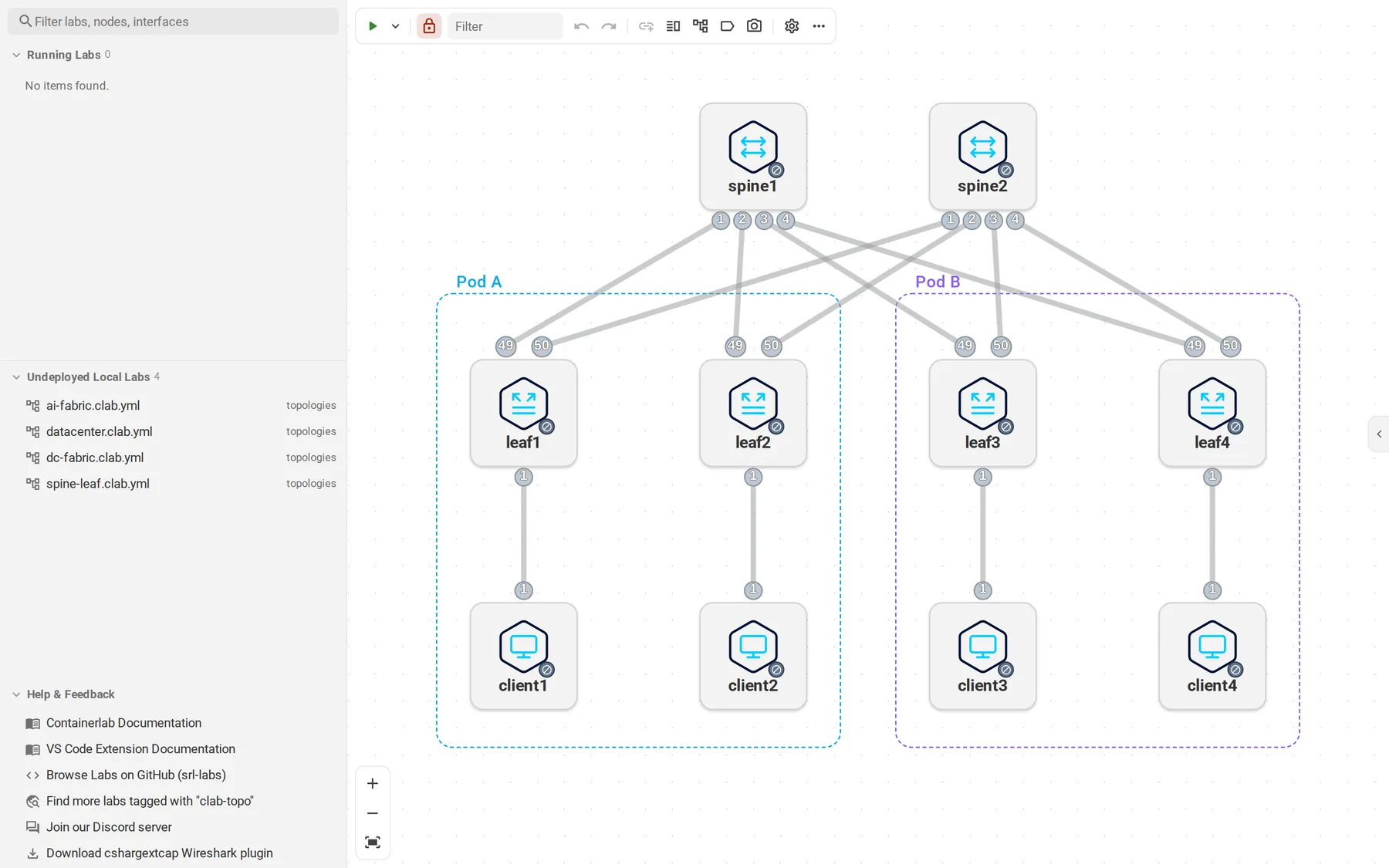
Prefer video? Here is a walkthrough of the extension on YouTube.
Work from the editor
Topology files get containerlab actions in the editor title bar, the right-click menu, and the command palette. The keyboard shortcuts work in any open .clab.yml file:
| Action | Linux and Windows | macOS |
|---|---|---|
| Deploy | Ctrl+Alt+D | Cmd+Alt+D |
| Redeploy | Ctrl+Alt+R | Cmd+Alt+R |
| Destroy | Ctrl+Alt+K | Cmd+Alt+K |
| Open the topology editor | Ctrl+Alt+G | Cmd+Alt+G |
Terminals for node shells and SSH open as VS Code terminals. Command output goes to the Containerlab output channel.
Work with labs on a lab host
The extension can also manage labs on a lab host that runs clab-api-server, without containerlab or Docker on your machine. This works from Linux, macOS, and Windows.
-
Open the Lab Hosts page. Select the server button in the explorer title bar, or run Containerlab: Manage Lab Hosts from the command palette.
-
Add the lab host with its API server URL, for example
https://lab1.example.com:8090, a name, and your Linux account on it. The account must be in theclab_apiorclab_adminsgroup, as for the desktop and web apps. The host is saved once the sign-in works. -
Find its labs in the explorer. Running Labs and Undeployed Labs each list Local and every lab host, with a dot for its status. Every action runs on the host the lab belongs to.
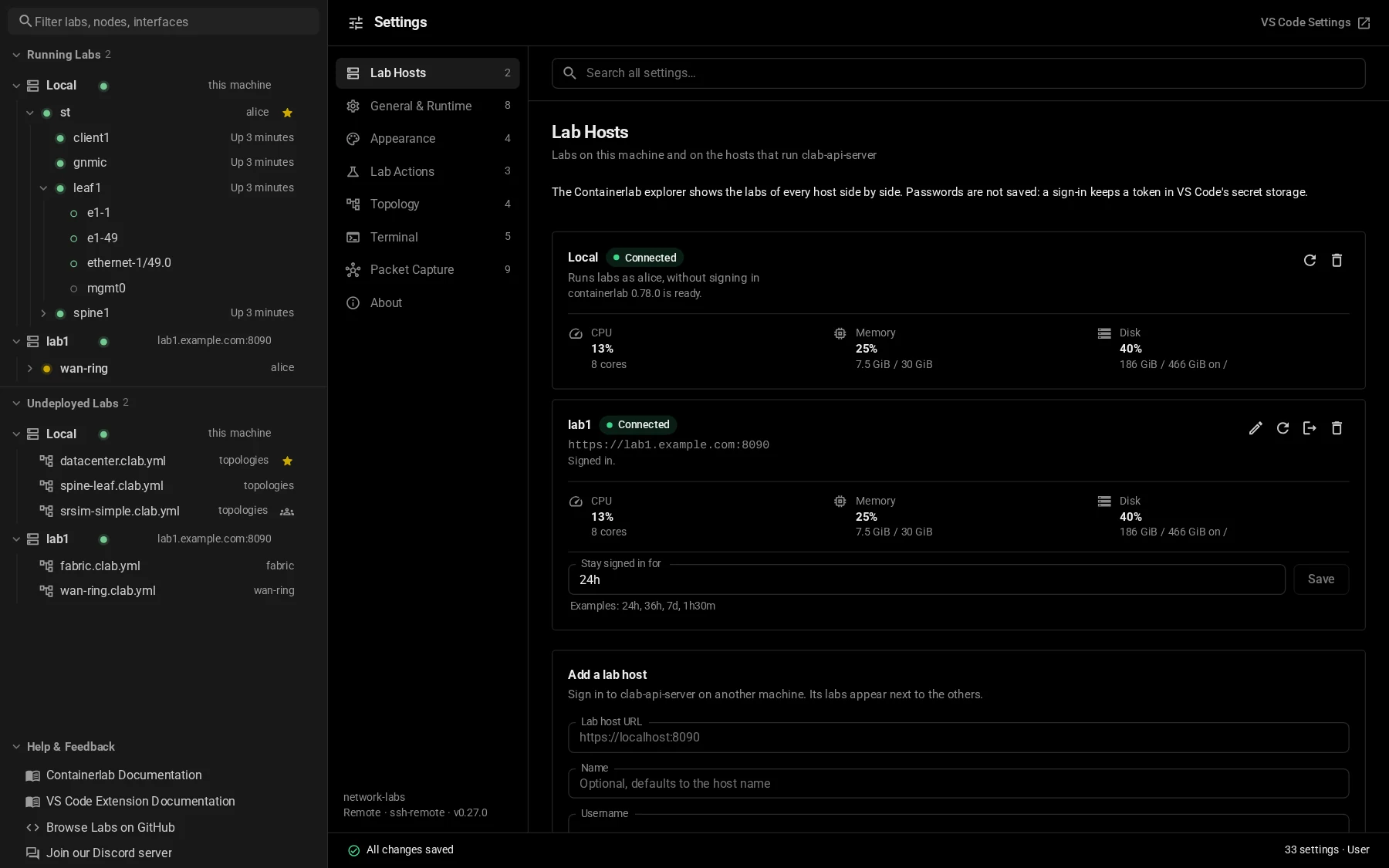
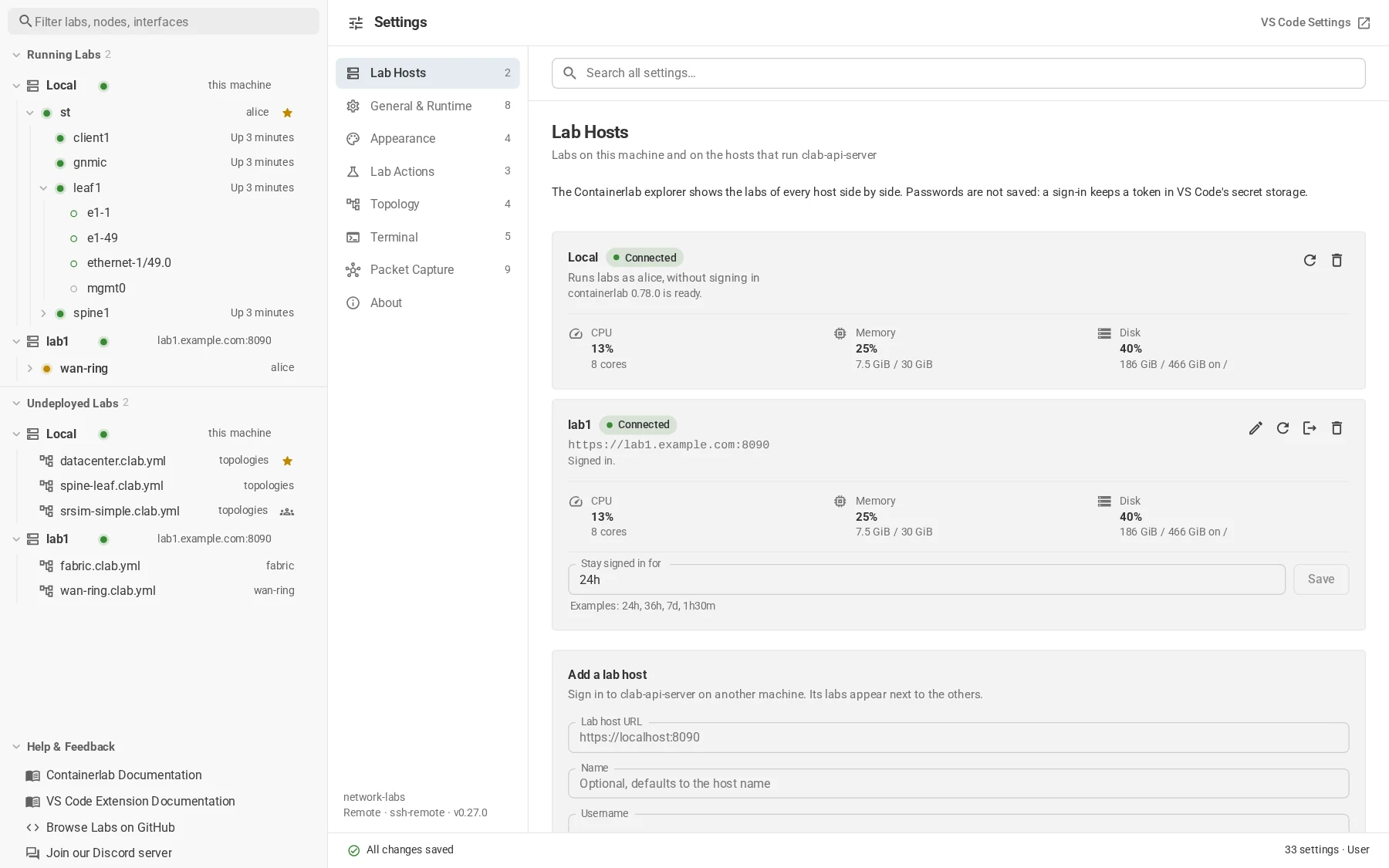
The Lab Hosts page shows each host's status, CPU, memory, and disk, and signs in, signs out, edits, or removes it. In the explorer, right-click a lab host for the same actions and more: deploy a lab file, clone a repository, manage images, install Edgeshark, or open its files. Containerlab: Add Lab Host… adds one from the command palette, step by step.
The lab hosts are kept in the containerlab.connections setting, so you can also add them there, for a whole team in workspace settings:
"containerlab.connections": [
  { "label": "lab1", "url": "https://lab1.example.com:8090", "username": "alice", "sessionDuration": "24h" }
]
Passwords never go into settings. Signing in exchanges the password for a session token, which VS Code keeps in its secret storage, so you stay signed in after a restart until the session ends. When it ends, the lab host's dot turns yellow; select the host to sign in again.
On a lab host:
- Files live in your workspace on the host (
~/.clab). The explorer lists the topologies there; they open asclab-api://files in the normal text editor and in the topology editor, and save back to the host. Open Files in Explorer adds the whole workspace to the Explorer view. - Deploy, destroy, apply, start, stop, save and the other lab actions run on the host, with the output in the Containerlab output channel.
- Shell, SSH, and telnet open as VS Code terminals connected through the API server. Logs open in an editor.
- Packet capture runs Wireshark in a container on the host and shows it in a VS Code tab; Edgeshark links point at the host.
- Clone repository and Deploy lab file with a Git URL clone into the host's workspace. The host takes GitHub and GitLab URLs.
- Image completion in topology files and the topology editor offers the host's images.
Local is listed when containerlab can run where VS Code runs. When something is missing there, its dot turns red and its tooltip says what to fix; Check Again looks again once you fixed it. To work with lab hosts only, hide Local on the Lab Hosts page, or turn off containerlab.localConnection. Like the desktop app, the extension accepts the API server's self-signed certificate; start VS Code with CLAB_API_TLS_VERIFY=true to require a trusted one.
Only in VS Code
- Sharing a running lab's terminals with SSHX or GoTTY.
- fcli helpers for SR Linux labs.
- Interactive Draw.io diagrams.
Every setting is listed in the VS Code settings reference. Open them with Containerlab: Open Settings from the command palette.
If something is off
No running labs appear. VS Code is probably not connected to the machine running containerlab. Open the remote window with Remote SSH, or add the machine as a lab host. If containerlab events do not reach the extension, set containerlab.refreshMode to polling.
A lab host shows no labs. A yellow dot means its sign-in ended; select the host to sign in again. A red dot means it does not answer: check that it is reachable from your machine, as described in If sign-in fails.
Interfaces are missing. Labs deployed with containerlab older than 0.64.0 need a redeploy before interfaces and statistics show up.
Packet capture does not open. For local labs, Docker must work on the machine running the extension. On a lab host, Edgeshark must run there: right-click the host in the explorer and select Install EdgeShark. Check the capture settings if your browser reaches the lab host under a different name.