Desktop app
A native window for Linux, macOS, and Windows. On Linux it runs labs on the computer itself, like the VS Code extension. It can also sign in to clab-api-server on lab hosts, and shows all of them side by side.
Install
Download the package for your system from the latest release.
Open containerlab-desktop-<version>-universal.dmg and drag the app to Applications.
Run containerlab-desktop-<version>-x64-setup.exe.
The macOS and Windows builds are not signed yet, so the system may warn you the first time you open them.
Run labs on this computer
On Linux, the app runs labs with the containerlab CLI and Docker of the computer it runs on. No API server, no sign-in: the app opens on the labs of This computer.
-
Prepare the computer as for the VS Code extension: install containerlab, make sure Docker works, and add your user to the
clab_adminsanddockergroups. Log in again after changing groups. -
Start the app. The explorer shows This computer with its running and undeployed labs.
When something is missing, the app opens on a start screen instead. It lists what to fix, with the command for each, for example the usermod line for a missing group. Fix it and select Check Again; the app opens on your labs once containerlab is ready. It never asks for your sudo password.
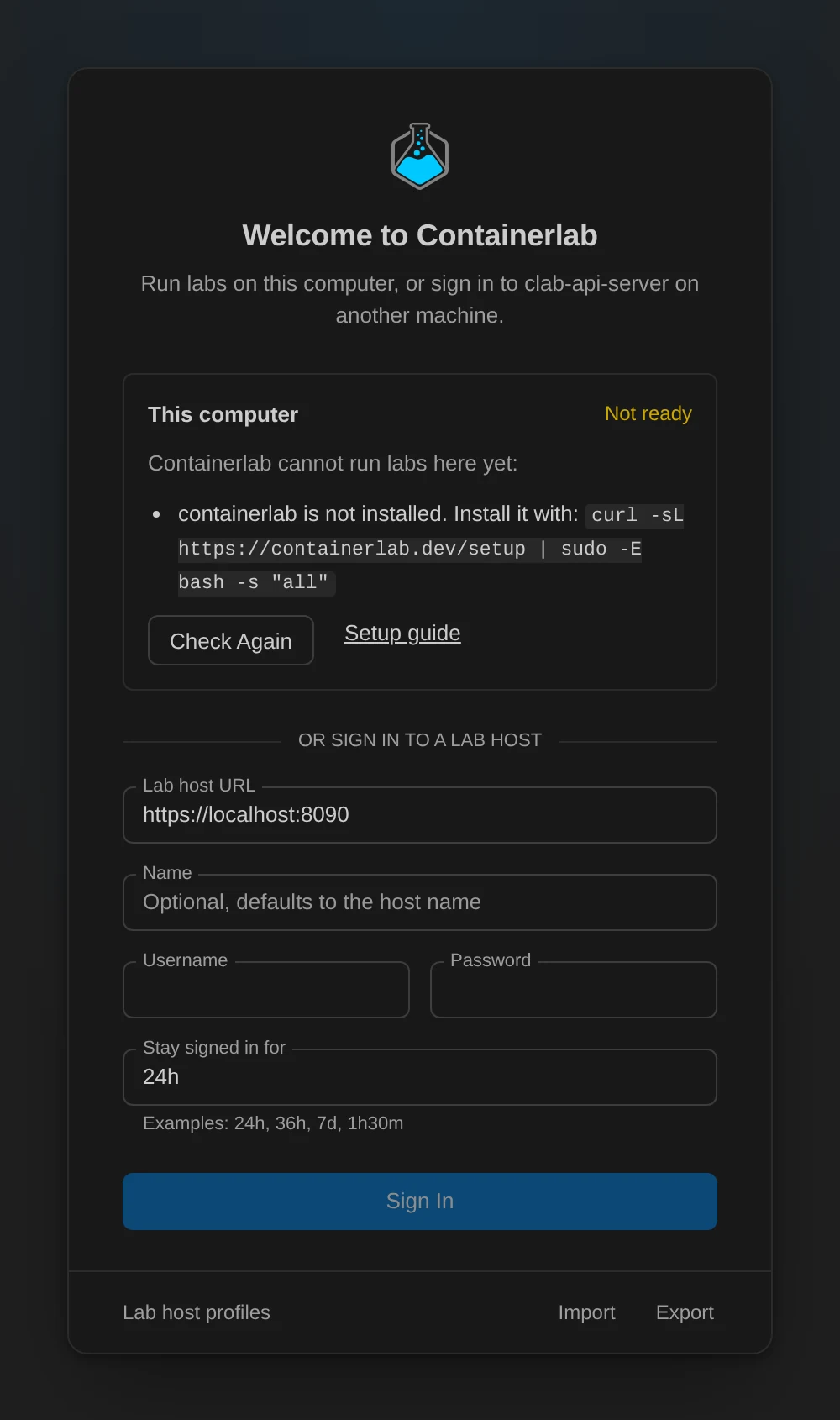
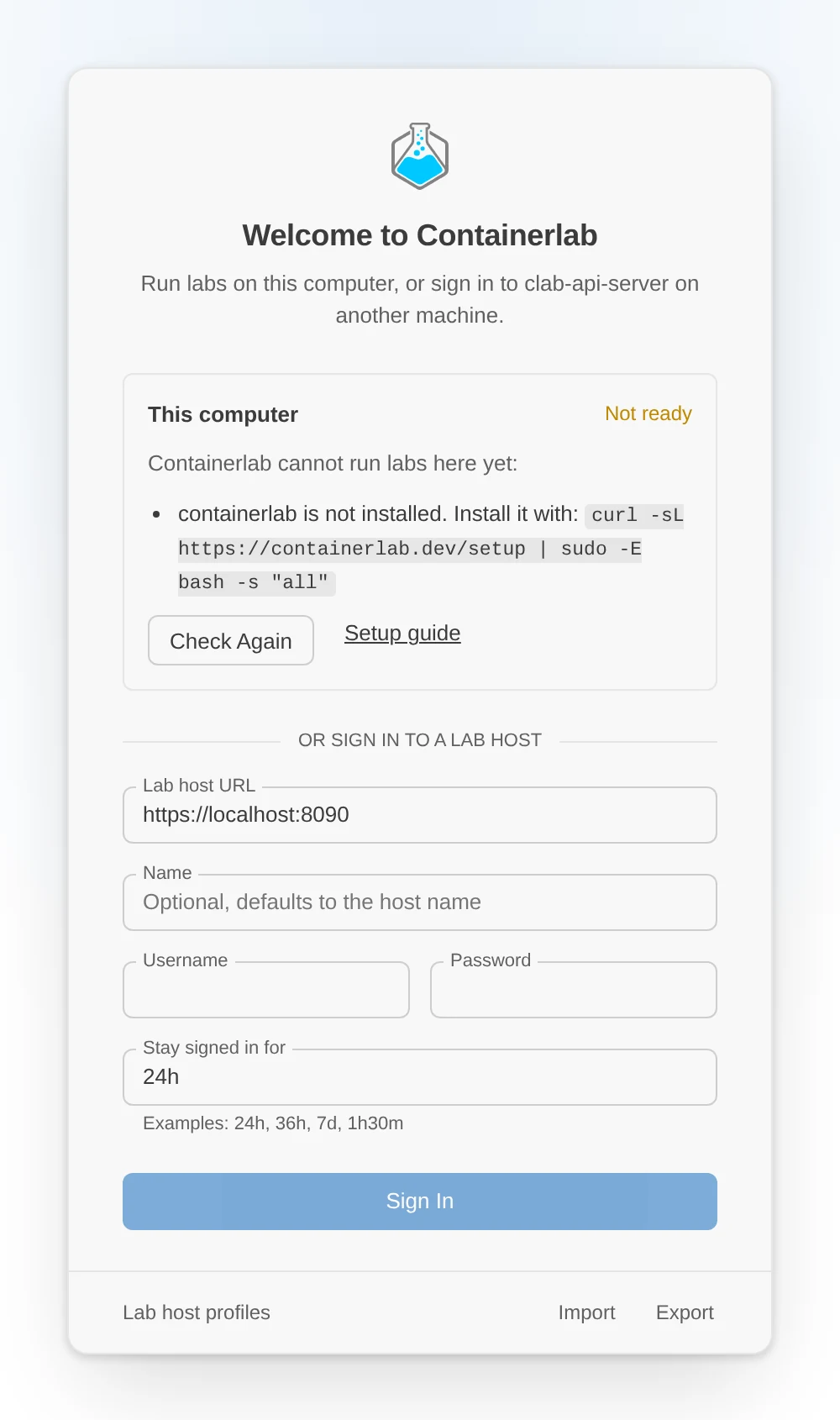
Labs on this computer run as your user. Topologies live in ~/.clab, the same folder clab-api-server uses, and so do node templates and icons; a lab host on the same machine sees the same files.
To hide This computer, remove it under Settings > Lab hosts. It stays hidden until you select Use This Computer there.
To change how the app runs containerlab, create ~/.config/Containerlab/local-backend.json:
{
  "binaryPath": "/usr/local/bin/containerlab",
  "runtime": "docker",
  "dockerSocketPath": "/var/run/docker.sock",
  "workspaceRoot": "/home/alice/labs",
  "deployExtraArgs": ["--max-workers", "4"]
}
Set "enabled": false to turn This computer off entirely, or "sudo": true to run containerlab with sudo -n, which needs passwordless sudo. The same options are available as environment variables.
Work with lab hosts
To work with labs on other machines, or from macOS and Windows, set up a lab host and sign in to it. On Linux, add lab hosts under Settings > Lab hosts; their labs show up next to This computer. On macOS and Windows the app starts on the sign-in screen.
Options
The app reads a few environment variables at start, for example to preset the API URL for a team. See web and desktop settings.